 anmol.gakhar
Introduction -
Sales teams rarely lose hours because of one big task. It is usually the small things that keep piling up.
Assigning leads. Creating follow-up reminders. Sending routine emails. Updating deal records. Checking which opportunities have gone quiet. Notifying managers when an important deal moves forward.
None of these tasks are particularly difficult. But when sales reps spend part of every day doing them manually, valuable selling time disappears.
According to Pipedrive's 2026 CRM Trends Report, 42% of sales professionals say non-revenue-generating tasks take up at least 40% of their day. The research also found that logging calls, emails, and meetings remains a major part of the sales workload.
This is where Zoho CRM workflow automation can make a practical difference. Instead of asking sales reps to remember every repetitive step, you can configure Zoho CRM to trigger the right action automatically when something happens in your sales pipeline.
In this guide, we'll look at 10 practical Zoho CRM workflow automation examples that can reduce manual work, improve follow-ups, and give your sales team more time to focus on selling.
Key Takeaways
- Zoho CRM workflow automation can remove repetitive administrative work from sales teams.
- Lead assignment, follow-ups, notifications, renewals, and post-sale handoffs are strong automation candidates.
- The best automation starts with a well-defined business process.
- Workflows should support salespeople rather than replace important human decisions.
- AI can extend automation into more context-dependent sales activities, but it should be introduced where it solves a real problem.
- Complex automation is often easier to manage when supported by experienced Zoho consultants.
What Is Zoho CRM Workflow Automation?
A Zoho CRM workflow is a rule-based automation that performs an action when a particular event or condition occurs in the CRM.
For example, when a new lead is created, Zoho CRM can automatically assign it to the appropriate salesperson and create a follow-up task.
A workflow generally consists of three parts:
Trigger → Condition → Action
The trigger determines when the automation starts. Conditions determine whether the rule applies, and the action tells Zoho CRM what to do.
This makes a Zoho automation workflow useful for repetitive processes that follow predictable business rules.
The key is not to automate tasks simply because automation is available. The best workflows remove friction from processes your sales team performs repeatedly.
How Does Zoho CRM Workflow Automation Save Sales Teams Time?
Imagine a salesperson receives 20 new leads in a day.
Without automation, they may need to check the lead source, identify the appropriate sales rep, assign each lead, create follow-up tasks, send an acknowledgment email, and update the record.
With the right workflows, many of these steps can happen automatically.
The salesperson can then focus on qualifying the lead and having the conversation rather than maintaining the CRM.
Automation also improves consistency. A follow-up rule doesn't forget to create a task because someone was busy, and a notification doesn't depend on a sales manager remembering to check the pipeline.
The result isn't simply fewer clicks. It is a more predictable sales process.
10 Zoho CRM Workflow Automation Examples
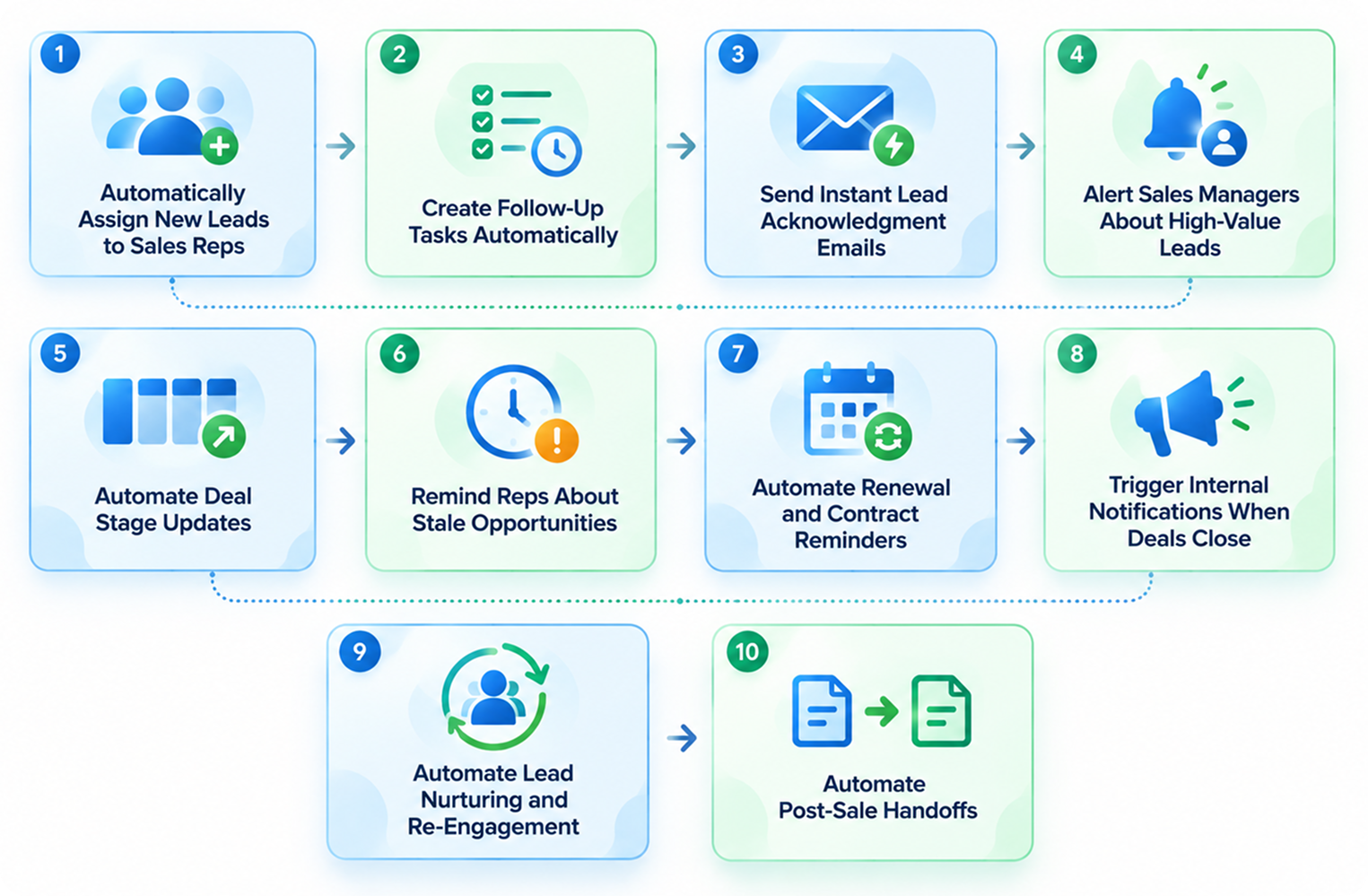
1. Automatically Assign New Leads to Sales Reps
Lead assignment is one of the easiest places to introduce automation.
Suppose your business receives leads from a website, paid advertising, referrals, and partner channels. Different salespeople may handle different regions, industries, or product lines.
Instead of manually assigning every lead, you can create rules based on factors such as:
- Lead source
- Country or region
- Industry
- Product interest
- Company size
- Lead owner availability
For example, a lead from the UAE interested in enterprise software could automatically be assigned to the salesperson responsible for that market.
Business impact: Faster lead response and less administrative work for sales managers.
Best practice: Keep assignment logic simple enough that your team can understand why a lead went to a particular owner.
2. Create Follow-Up Tasks Automatically
Missed follow-ups are expensive.
A salesperson may finish a discovery call and intend to contact the prospect three days later. Then another meeting takes priority, the reminder gets forgotten, and the opportunity goes cold.
A Zoho CRM workflow can create follow-up tasks based on deal or lead activity.
For example:
Proposal Sent → Create follow-up task → Due in 3 days
The salesperson still owns the conversation. The CRM simply makes sure the next action doesn't get lost.
This is particularly useful for businesses with longer sales cycles where opportunities require multiple touchpoints.
Business impact: More consistent follow-up without relying entirely on individual memory.
3. Send Instant Lead Acknowledgment Emails
Speed matters when someone submits an inquiry.
Instead of waiting for a salesperson to manually send a confirmation, Zoho CRM can trigger an email when a new lead enters the system.
The message could confirm that the inquiry was received and explain what happens next.
For example:
"Thanks for contacting us. A member of our sales team will review your request and get in touch shortly."
This doesn't replace human communication. It simply ensures the prospect receives an immediate response while the sales team prepares for the next step.
Business impact:Better communication and fewer repetitive emails for sales representatives.
4. Alert Sales Managers About High-Value Leads
Not every lead requires management attention.
A high-value enterprise opportunity might.
You can create a workflow that alerts a sales manager when a lead or deal meets predefined criteria.
For example:
Deal value > defined threshold + qualification status = qualified → Notify sales manager
The notification could prompt the manager to review the opportunity, assign additional resources, or help the salesperson prepare for the next meeting.
Business impact:Management attention goes toward opportunities where it can have the greatest commercial value.
5. Automate Deal Stage Updates
Sales representatives often spend time updating CRM records after calls and meetings.
Some updates can be automated when clear conditions exist.
For example, when a required action is completed or a particular field is updated, the CRM can trigger a related workflow.
The important limitation is that automation should not pretend to understand a sales conversation that still requires human judgment.
Don't automatically mark an opportunity as "Won" simply because an email was sent. Use automation for predictable administrative changes and leave important sales decisions to the team.
Business impact: Cleaner records with less manual administration.
6. Remind Reps About Stale Opportunities
A sales pipeline can look healthy while quietly filling up with opportunities nobody is actively working.
You can create processes that identify deals that have had no meaningful activity for a defined period.
For example:
No activity for 14 days → Create follow-up task
The exact period should depend on your sales cycle. A business with a seven-day sales cycle should not treat a two-week-old opportunity the same way as an enterprise company with a six-month buying process.
Business impact: Fewer forgotten opportunities and better pipeline hygiene.
Consultant tip: Don't create reminders so frequently that they become background noise. Automation should help salespeople prioritize, not generate another list of tasks they ignore.
7. Automate Renewal and Contract Reminders
Renewals are easy to overlook when teams manage them manually.
For businesses with subscriptions, contracts, annual services, or maintenance agreements, CRM automation can create reminders before renewal dates.
For example:
Renewal date approaching → Create account-manager task → Notify owner
You could establish different reminders based on the contract type.
A 30-day reminder might work for a simple service contract, while an enterprise account may require several months of preparation.
Business impact: Better renewal visibility and fewer last-minute account management activities.
8. Trigger Internal Notifications When Deals Close
Closing a deal often starts work for other departments.
Finance may need to invoice the customer. Operations may need to begin delivery. Customer success may need to schedule onboarding.
Without a connected process, the salesperson may have to send separate emails to each team.
A workflow can trigger internal notifications when a deal reaches a defined stage.
For example:
Deal marked Closed Won → Notify implementation team + create onboarding task
This becomes even more useful when your CRM is connected with other business applications.
Business impact: Faster handoffs and fewer opportunities for important information to get lost between departments.
9. Automate Lead Nurturing and Re-Engagement
Not every lead is ready to buy immediately.
Some prospects need more time. Others may stop responding after the first conversation.
Instead of manually tracking every inactive lead, you can build workflows that trigger appropriate follow-up activities.
For example:
Lead status = contacted + no response → Create follow-up task
For more sophisticated nurturing, CRM workflows can work alongside your marketing automation tools.
The important distinction is that automation should support the customer journey rather than sending endless generic messages.
Business impact: Sales teams spend less time remembering who needs attention while prospects receive more consistent communication.
10. Automate Post-Sale Handoffs
The sales process doesn't end when a deal is closed.
For many businesses, the next stage involves onboarding, implementation, support, or account management.
A workflow can create the required internal tasks when a deal is marked as won.
For example:
Closed Won → Create onboarding record → Notify customer success → Create implementation task
This helps ensure the customer experience doesn't depend on a salesperson remembering to send a handoff email.
Business impact: Cleaner transitions between sales and delivery teams and fewer missed onboarding steps.
Zoho CRM Workflow vs Blueprint: What's the Difference?
Workflows and Blueprints can both support process automation, but they serve different purposes.
A workflow is useful when you want the CRM to perform an action automatically after a specific trigger or condition.
A Blueprint is more useful when you need to control how users move through a defined business process.
For example, a workflow could automatically create a follow-up task after a proposal is sent.
A Blueprint could require a salesperson to complete specific information before moving a deal from "Proposal" to "Negotiation."
Think of it this way:
Workflow = automate an action.
Blueprint = control a process.
Many well-designed CRM environments use both.
How to Build an Effective Zoho CRM Workflow?
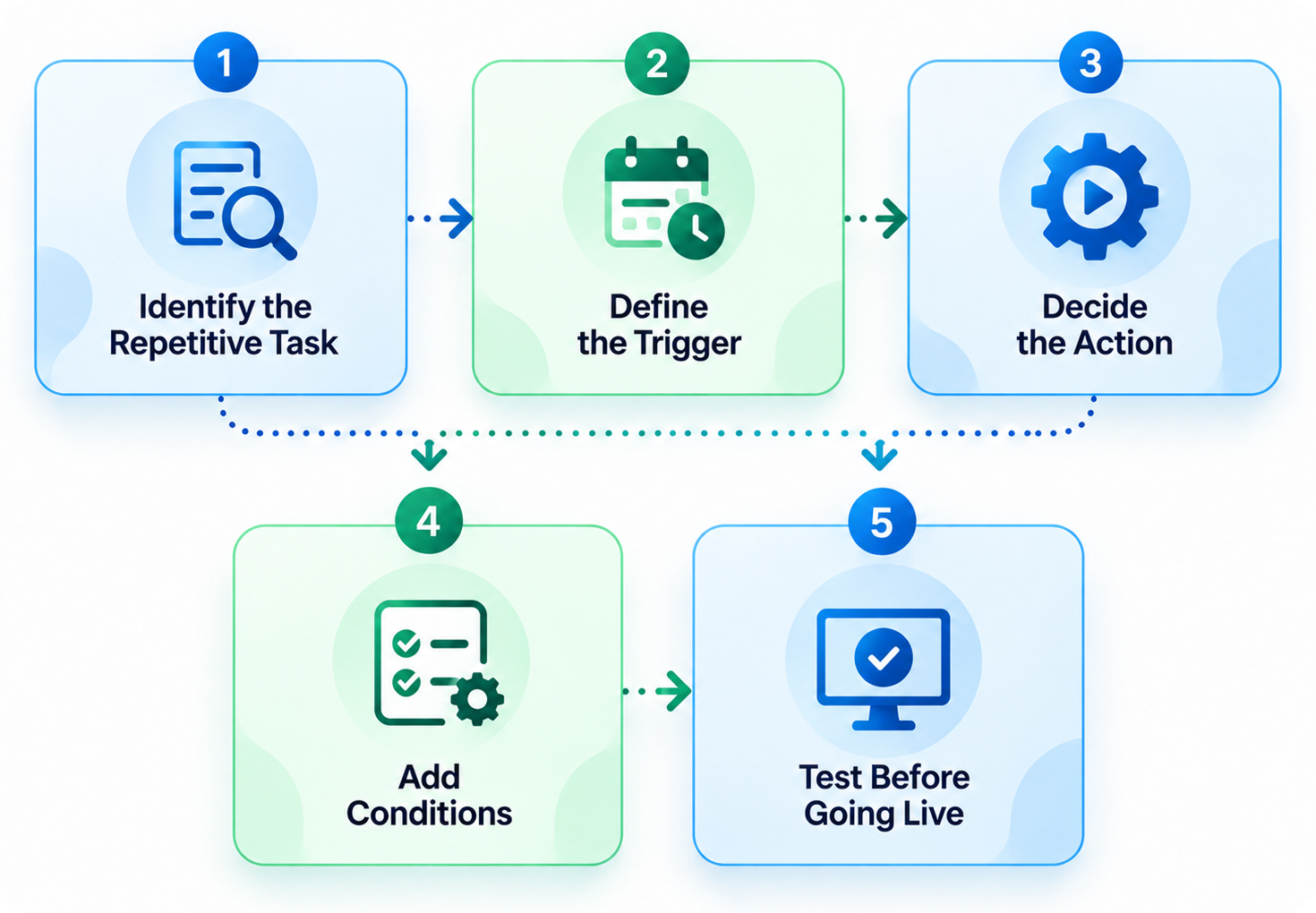
Creating a workflow is easy. Creating one that actually improves the sales process requires more thought.
1. Identify the Repetitive Task
Start with the work your team performs repeatedly.
Don't begin with the question, "What can Zoho automate?"
Ask:
"What manual activity is wasting the most time or causing the most errors?"
That usually reveals better automation opportunities.
2. Define the Trigger
Determine exactly when the workflow should run.
Examples include:
- Record creation
- Record modification
- Date-based events
- Field changes
- Deal stage changes
The trigger should be specific enough to prevent unnecessary automation.
3. Decide the Action
What should happen next?
It could be:
- Create a task
- Send an email
- Send a notification
- Update a field
- Assign a record
- Trigger another process
4. Add Conditions
Conditions prevent the automation from affecting records that don't need it.
For example, you may want a manager notification only when a deal exceeds a certain value.
5. Test Before Going Live
Always test workflows using sample records before releasing them to the entire sales team.
A poorly configured workflow can create duplicate tasks, incorrect assignments, unwanted notifications, or unexpected data changes.
How AI Agents in Zoho CRM Can Take Automation Further?
Traditional workflows follow predefined rules.
AI can support a different type of automation by helping with tasks that involve interpretation, recommendations, or more flexible decision-making.
AI agents in Zoho CRM can potentially support sales teams with activities such as analyzing customer information, assisting with repetitive sales tasks, surfacing relevant information, or helping users take action within connected business processes.
This is an important distinction.
A traditional workflow might say:
If the deal value exceeds X, notify the manager.
An AI-driven process can potentially evaluate a wider set of information and assist with more context-dependent tasks.
That doesn't mean every sales process needs an AI agent.
Start with predictable workflows first. Introduce AI where the process requires more context or where the potential time savings justify the additional complexity.
Common Zoho CRM Workflow Automation Mistakes
Automation can save hours, but poorly designed automation can create new problems.
Automating a Broken Process
If the underlying process is inefficient, automation simply makes the inefficient process happen faster.
Fix the process first.
Creating Too Many Notifications
If employees receive dozens of automated alerts every day, they'll eventually stop paying attention.
Only notify people when an action genuinely requires their attention.
Using Complex Conditions Nobody Understands
A workflow should be maintainable by your CRM administrator.
If nobody understands why it works, troubleshooting becomes difficult.
Automating Important Decisions
Don't automate decisions that require sales judgment simply because a technical workaround exists.
Not Reviewing Workflows
Your business changes.
A workflow created two years ago may no longer reflect your current sales process.
Review important automations periodically.
When Should You Consider Zoho CRM Implementation Services?
Basic workflows can often be created internally.
The situation becomes more complicated when automation spans several departments, applications, and business processes.
Consider professional Zoho CRM implementation support when you need:
- Complex sales workflows
- Multiple pipelines
- Advanced automation
- Data migration
- Third-party integrations
- Custom functions
- Multiple user roles
- Cross-department processes
- Advanced reporting
- CRM redesign
A proper implementation should begin with process mapping rather than jumping straight into workflow creation.
That approach helps identify which activities should be automated, which should remain manual, and which need a different process altogether.
How Zoho Consultants Can Help You Build Better Automation?
Experienced Zoho consultants can look at your CRM from both a technical and business perspective.
They can help identify repetitive processes, map business requirements, configure workflows, connect applications, test automations, and train users.
The value isn't simply knowing where to click inside Zoho CRM.
It is understanding which automation is worth building in the first place.
Working with Zoho experts can be especially useful when your CRM has grown organically and now contains multiple workflows that overlap or conflict with each other.
For businesses that need broader strategy and ongoing optimization, Zoho consults can provide support beyond the initial configuration.
Ready to Automate Your Zoho CRM?
If your sales team is spending too much time on repetitive CRM tasks, the right automation strategy can free up valuable hours without adding unnecessary complexity.
Our Zoho CRM consultants can help you identify automation opportunities, configure workflows, integrate business applications, and build a CRM environment that supports your sales process.
Book a consultation with our Zoho experts to plan your automation roadmap.
Frequently Asked Questions
Zoho CRM workflow automation uses predefined rules to automatically perform actions when specific events or conditions occur. For example, a workflow can assign a new lead, create a follow-up task, send a notification, or update a CRM field when a defined condition is met.
Common examples include automatic lead assignment, follow-up task creation, lead acknowledgment emails, high-value deal alerts, stale-opportunity reminders, renewal notifications, post-sale handoffs, and lead re-engagement. The best workflows are usually those that eliminate repetitive tasks performed frequently by sales teams.
Automation removes repetitive administrative activities from the salesperson's daily workload. Instead of manually creating tasks, assigning leads, sending routine notifications, or checking for overdue activities, the CRM can perform these actions automatically based on predefined rules.
A workflow generally automates an action when a trigger or condition occurs. A Blueprint is designed to guide and control a business process by defining stages, required actions, and transitions. Workflows are useful for automating tasks, while Blueprints are useful for managing structured processes.
Yes. Zoho CRM can automate follow-up activities by creating tasks, sending notifications, or triggering other actions based on lead status, activity, dates, or other defined conditions. The exact workflow should reflect the company's sales cycle and follow-up process.
Yes. Zoho's ecosystem includes AI capabilities, and newer AI-driven functionality can support tasks that go beyond traditional rule-based automation. AI agents in Zoho CRM can be useful for more context-dependent activities, but businesses should first identify the specific problem they want AI to solve.
Consider working with Zoho CRM consultants when automation involves multiple departments, complex workflows, data migration, custom functions, third-party integrations, or a CRM redesign. Experienced consultants can also help identify which processes should be automated and which should remain manual.
Yes. Zoho CRM can work within the wider Zoho ecosystem and connect with other business applications depending on your requirements and configuration. This can help businesses connect sales with functions such as finance, inventory, marketing, and customer support.